


JunkRemover
3.94.00 Reviews
App Specs
- Version
- 1.0.5
- Updated On
- License
- Free
- Downloads
- 100,000+
- Developer
- QFD CONSULTANTNS ( PRIVATE ) LIMITED
- Categories
- Tools
- Platform
- Android
Screenshots
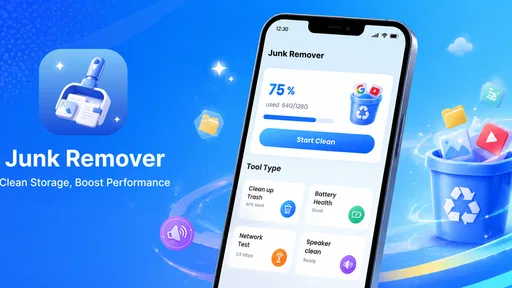
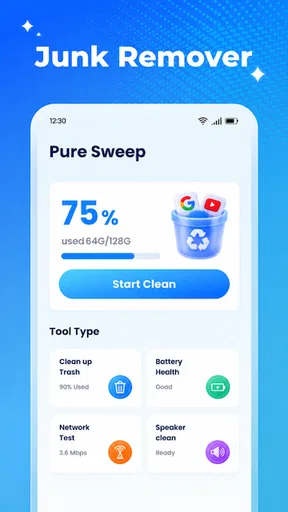
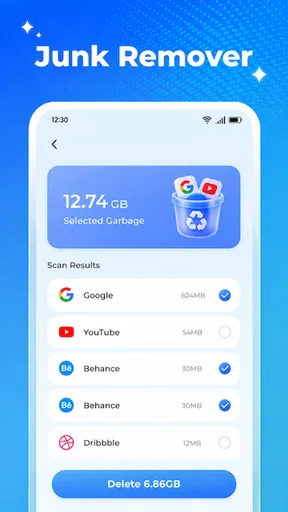
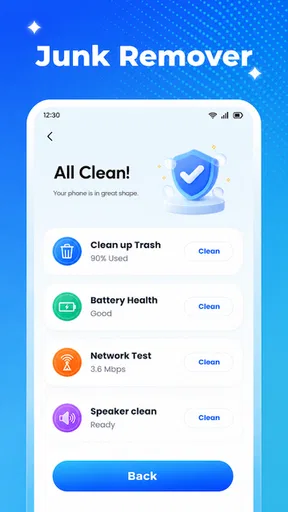
 Analysis by AppCompare
I approached JunkRemover as a practical phone-maintenance tool rather than something I would open for entertainment. Its promise is simple: help clear unwanted material with very little effort. That simplicity is the main reason to consider it. When a phone feels crowded or cluttered, most people do not want to inspect every folder manually; they want a quick way to begin sorting things out.
In my experience, the app makes the most sense for Android users who prefer a focused utility over a large “phone booster” suite. It belongs to the tools category, is free to use, and carries an Everyone age rating. The developer is QFD CONSULTANTNS ( PRIVATE ) LIMITED. Its current version is 1.0.5, and it requires Android 9 or later, so compatibility should be straightforward for many relatively recent phones.
The important thing is to keep expectations realistic. A cleaner can help identify removable clutter, but it cannot replace sensible file management, cloud-storage planning, or a careful look at personal media. I found the one-tap approach appealing for routine maintenance, while also seeing why cautious users may want to review what is selected before confirming any cleanup.
How JunkRemover fits into everyday phone maintenance
I think of JunkRemover as a small, occasional part of phone care, not a routine that needs to run every day. In this section, I’ll look at how it can fit around the moments when storage actually becomes a concern, then turn to the choices that make a cleanup feel controlled rather than rushed.
A quick starting point when storage feels crowded
The strongest use case is the familiar moment when a phone starts warning about limited space, apps take longer to update, or the gallery becomes difficult to navigate. Instead of opening the file manager and searching through multiple locations, I can begin with a cleanup-oriented tool designed around junk removal. That reduces the amount of technical knowledge needed to take the first step.
This is especially useful for someone who rarely checks temporary files or leftover folders. A person who mainly uses a phone for messaging, photos, video, browsing, and occasional downloads can accumulate clutter without noticing. The value here is not that the app magically fixes every storage problem; it is that it turns an unpleasant housekeeping task into a more approachable routine.
I would use it before a long trip, before downloading a large offline map or media collection, or after months of installing and removing apps. Those are practical moments when a little extra room matters. It can also be useful on a family member’s phone when they need help but do not feel comfortable navigating technical storage menus.
Worth Reading Before You Choose

EA SPORTS FC Mobile 26 Is a Bigger Football Game, but It Takes Time

Flipboard Shows What News Apps Must Do Beyond the Feed

Switching to Android Auto Means Rethinking Your Driving Routine

Google Calendar Makes a Crowded Week Easier to Manage

Ludo King Makes the Most of the Minutes Between Plans

Baby Panda World Brings Quick Play to Modern Phones, but Its Game Library Feels Busy
What the one-click idea does well
The app’s short store description points toward a deliberately uncomplicated experience. That is a good match for people who do not want charts, optimization scores, battery claims, or a collection of unrelated tools. A focused cleaner is easier to understand: open it, inspect what it identifies, and decide whether to proceed.
That simplicity also gives the app a clear limitation. A one-click workflow is convenient, but convenience should not mean blindly approving everything. I would treat the scan as a recommendation rather than an instruction. Before cleaning, I would look for anything that might be connected to an active download, a recently used application, or a file I still need.
A useful habit is to run a cleanup after manually reviewing the gallery and downloads folder. That order matters. Personal photos, recordings, documents, and saved videos are often more important than the temporary material a cleaner is designed to find. Manual review protects the files that matter, while the utility can handle the less interesting housekeeping afterward.
Connectivity can influence the experience
Because this is a phone utility, the most important work appears to be local organization, but I would not assume every part of the experience behaves the same way without a connection. App loading, updates, advertising, diagnostics, or any online service used around the cleanup process may depend on connectivity. The safe approach is to open it before you urgently need it and see how the current installation behaves in your normal network conditions.
This matters when storage is already nearly full and you are standing somewhere with weak reception. A tool that is useful at home on Wi-Fi may feel less convenient in a basement, on a train, or during travel. I would not wait until the last possible moment before a large download to discover that the surrounding experience is less responsive without a network.
At the same time, I would avoid turning connectivity into a reason to overuse the app. Cleaning a phone is not something that needs constant attention. A sensible rhythm is to check storage when there is a clear reason, perform a careful pass, and then leave the phone alone rather than repeatedly scanning just to chase a cleaner-looking result.
Using it in mobile situations
Phones are often cleaned in inconvenient places: while waiting for a ride, between meetings, or just before taking more photos. That makes a short, focused workflow attractive. If I have only a few minutes, I can use the app as a first pass instead of attempting a complete reorganization of every folder.
However, a rushed cleanup is exactly when mistakes become more likely. I would not start deleting material while walking, driving, or multitasking. The better mobile workflow is to scan when convenient, pause to read the categories or selections, and confirm only when I can concentrate. A small screen encourages fast tapping, so the safest benefit comes from slowing down at the final decision.
For travelers, the timing is also important. I would clean before leaving rather than during a trip, when a missing image, document, or downloaded file could be difficult to replace. If the phone is used for tickets, identification, translation, navigation, or emergency communication, preserving useful local content should take priority over gaining a little extra space.
What happens when something goes wrong
Any cleanup tool needs a recovery mindset. Before I approve a broad action, I would close important apps, finish active downloads, and make sure valuable photos and documents exist somewhere safe. This is not a criticism unique to JunkRemover; it is simply the right way to use any utility that may remove files.
If the scan appears incomplete, I would first check the obvious causes: available storage, the phone’s responsiveness, and whether the network situation is interfering with the app’s surrounding functions. I would avoid repeatedly tapping the cleanup control. A second attempt should come only after confirming what happened during the first one.
If the phone behaves differently afterward, I would restart it and check the affected app or folder before trying another cleaning pass. I would also keep in mind that some applications recreate temporary files as soon as they are opened. Seeing clutter return does not automatically mean the cleaner failed; some of it may be normal operating material generated again during everyday use.
The absence of a dramatic “boost” is another point worth understanding. Removing unwanted files may create breathing room, but it will not transform an older phone into a new one. Performance problems caused by an aging battery, demanding apps, weak hardware, or a crowded photo library require different solutions. JunkRemover is best judged as a maintenance aid, not a cure for every slowdown.
Being careful with personal data
Storage cleanup is closely tied to privacy because a phone contains personal material. I would pay particular attention to folders connected to messaging apps, camera imports, voice recordings, and downloaded documents. A filename that looks disposable may still be useful, and thumbnails or duplicates can sometimes represent memories that are not stored elsewhere.
My preferred routine is to separate three decisions. First, I identify what I definitely want to keep. Second, I review what is genuinely disposable. Third, I let the cleaner handle the remaining low-value clutter. This is slower than pressing a single button immediately, but it produces a much better balance between convenience and control.
Connectivity adds another layer of caution. I would use the app on a trusted connection when an internet connection is involved in the surrounding experience, and I would avoid public networks for sensitive account activity at the same time. I would also review the app’s current permission prompts carefully and grant only what is necessary for the task presented on screen.
For data-conscious users, the practical question is not simply whether a cleaner is free. It is whether the time saved is worth the access and attention the app requests. JunkRemover’s focused purpose is appealing, but I would still read each prompt instead of assuming that “cleaning” gives unlimited permission to inspect or remove everything.
How it compares with the usual alternatives
The closest alternative is the phone’s built-in storage manager. That option usually has the advantage of being integrated into the operating system and may provide a more direct view of applications, media, and available space. If I want maximum system context or detailed control, I would start there.
JunkRemover is more attractive when I want a simpler entry point. A dedicated cleaner can feel less intimidating than navigating several settings screens, especially for someone who does not know which categories are safe to review. The trade-off is that a focused third-party tool may not provide the same depth of system-level information as the manufacturer’s own controls.
File managers offer another comparison. They are better for people who want to inspect folders, rename files, move content, and make deliberate decisions. They are also more demanding. JunkRemover suits the person who wants to reduce routine clutter without becoming a full-time file librarian.
Large optimization suites may include cleaning alongside battery tools, security checks, notifications, or performance dashboards. I generally prefer JunkRemover’s narrower purpose if I only need storage housekeeping. A suite may be better for someone who wants several utilities together, but it can also make the experience busier and encourage unnecessary maintenance actions.
Who will get the most from it
I would recommend this app to Android users who want a straightforward cleanup companion, particularly those who are uncomfortable with technical storage menus. It is also a reasonable fit for people who accumulate temporary material through frequent browsing, messaging, downloads, and app use but do not want to sort every folder by hand.
It can be useful for a shared household as well. If one person in the family regularly runs out of room, a simple guided tool may make maintenance easier to explain. I would still supervise the first few cleanups, especially when the phone contains irreplaceable photos or work documents.
The app is less suitable for advanced users who already maintain a careful folder system and want granular control over every file. It is also not my first choice for diagnosing a phone that is overheating, crashing, losing battery rapidly, or suffering from network problems. Those symptoms call for system settings, app troubleshooting, hardware checks, or professional support rather than a cleaner alone.
What its reception suggests
JunkRemover has passed one hundred thousand installs and holds a 4.2 average from 263 ratings, which gives it a meaningful user presence without making it a universal recommendation. The listing shows four written reviews, so I would place more weight on my own workflow and caution than on a small collection of comments.
Its free price lowers the barrier to trying it, but free does not remove the need for judgment. I would test it on a phone where I understand the important folders, observe what it presents for cleanup, and only then decide whether it deserves a regular place in my maintenance routine.
My connectivity verdict
JunkRemover works best when I treat it as a calm, occasional storage check rather than an emergency button. Connectivity may affect parts of the surrounding experience, so I would prepare at home or on a trusted network instead of relying on it in a signal dead zone. That small bit of planning makes the mobile experience less stressful.
The app’s real strength is approachability. It gives people who avoid storage settings a clear way to begin, and the free model makes experimentation easy. Its real weakness is the temptation to confuse speed with certainty. One-tap cleanup is useful only when I still take a moment to understand what I am approving.
Overall, I see it as a practical option for light phone housekeeping, especially for users who want less complexity than a full optimization suite. I would choose the built-in storage manager or a capable file manager when I need deeper visibility, and I would skip a cleaner entirely when the problem is unrelated to clutter. Used with that distinction in mind, JunkRemover is a convenient first step, not a substitute for responsible file management.
Pros
- Quickly identifies large
- old
- and duplicate files
- Simple interface makes cleanup easy for beginners
- Helps free storage space without deleting files automatically
- Useful filters make unwanted media easier to find
- Can improve device organization with minimal effort
Cons
- Some features may require a premium subscription
- Scanning can take longer on devices with many files
- Duplicate detection may need manual review for accuracy
- Cleanup suggestions can include files you still want to keep
- Ads may interrupt the experience in the free version
FAQs for JunkRemover
What is JunkRemover and what does it do?
JunkRemover is designed to help users identify and remove unnecessary files from a mobile device. Depending on the version and platform, it may scan cached data, temporary files, leftover installation packages, duplicate items, and other storage-consuming content. Its main purpose is to free space and make storage easier to manage, although it should be used carefully because not every file suggested for removal is automatically disposable.
Is JunkRemover safe to use on Android or iOS?
JunkRemover can generally be used safely when downloaded from an official app store and reviewed before each cleanup. However, no cleaning application should be given unlimited trust. Check the files selected for deletion, avoid removing personal photos or documents accidentally, and read the permissions requested during setup. On iOS, system restrictions may limit what the app can access, while Android users may see broader storage-related permissions.
Can JunkRemover improve my phone’s performance?
JunkRemover may help when your device is running low on storage, since removing temporary files and unused content can make everyday storage management easier. It is not a guaranteed speed booster, however, and it cannot fix hardware limitations, an outdated operating system, battery wear, or poorly optimized applications. The most noticeable benefit is usually recovering space rather than dramatically increasing performance.
Does JunkRemover delete photos, videos, or important personal files?
The app should not remove personal files without user confirmation, but you should still inspect every cleanup category before accepting the operation. Some tools may identify large, duplicate, or rarely used media files as potential targets. Review previews, filenames, and folders carefully, and create a backup of important photos, videos, downloads, and documents before running a deep cleaning scan.
Is JunkRemover free, and does it contain advertisements or subscriptions?
The availability of free features, advertisements, in-app purchases, and premium subscriptions can vary by the specific JunkRemover version and the store where it is downloaded. Before installing, check the current listing for pricing details and subscription terms. If a premium trial is offered, read when billing begins and learn how to cancel it through your Google Play or Apple account settings.


